In this guide, you will learn about how to add video links to listings in the REMAX LMS. There are additional resources available on how to be effective with video tours.
Resource links to Video guides.
- How to Shoot a Real Estate Video with a Smartphone
- How To Add Music To Your YouTube Video (iPhone and Android)
- Free Background Music (No Copyright Issues)
- How to Create a YouTube Channel for Beginners in 2026 (Step-by-Step)
- How to Upload a YouTube Video (Step-by-Step Tutorial for Beginners)
Step 1 – Get the embed link from YouTube Video
Let’s get started with copying the YouTube Embed link from your recently uploaded Video tour.
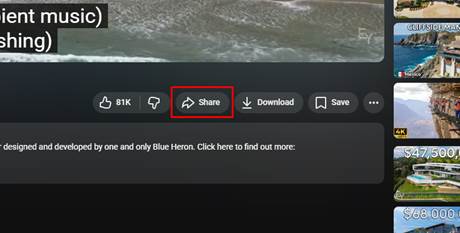
1. Once your video is uploaded to YouTube, click the “Share” button on the video.
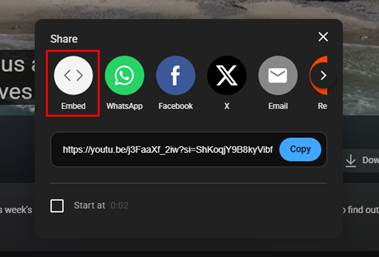
2. You will get a pop-up dialog, click the Embed button.
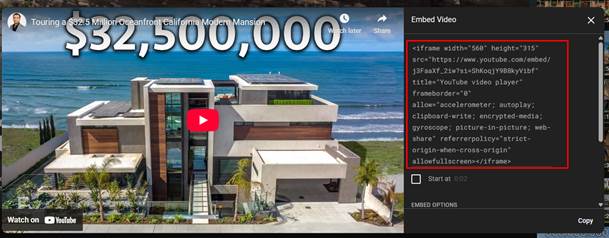
3. When you select the Embed button, you will see the Embed HTML code on the right side of the dialog box.
4. We only need to Video link, copy only the highlighted part.
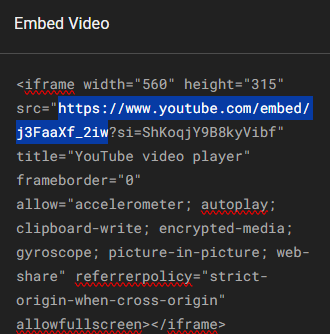
5. The copied link should look like this link - https://www.youtube.com/embed/j3FaaXf_2iw
Step 2 – Add the copied Video link to the listing.
Now let’s add the Video link to the listing in the Hub.
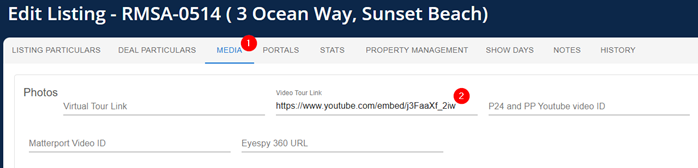
1. In the LMS, navigate to the Edit listing page, and click on Media. Paste the copied YouTube Embed link into the “Video Tour Link” section, as shown below.
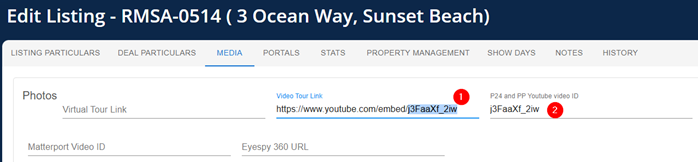
2. Now we need to copy the Video ID, to add it for Property24 & Private Property.
Only the Video ID is required, copy only this part - https://www.youtube.com/embed/j3FaaXf_2iw = j3FaaXf_2iw
Now scroll down and click the next button to save your changes.
Was this article helpful?
That’s Great!
Thank you for your feedback
Sorry! We couldn't be helpful
Thank you for your feedback
Feedback sent
We appreciate your effort and will try to fix the article